Export and delete a household
The household owner can download an optional copy, then separately confirm closure and eligible-data deletion.
Only the household's sole owner can close the whole household. Other members can contact support about their own personal data without asking to close everyone else's access.
Choose whether to keep a copy
- Check that you are viewing the household you intend to close.
- Open Settings → Delete household and check the household name again.
- Choose Download my household data if you want a copy. Save the file somewhere private and check the download completed before continuing.
- Choose Continue to deletion, or Continue without downloading if you do not want a copy. Neither action deletes anything yet.
The JSON archive contains the household's financial and planning records, member details and saved Giving evidence. It excludes sign-in secrets, connector tokens, temporary uploads, internal security records and other households. Saved evidence content is hex-encoded inside the archive. This is a data copy, not a file that automatically recreates an account through import.
If an export is too large or cannot be prepared, contact support before deleting if you want to keep a copy. Repeated export attempts may be temporarily limited; wait for the retry period rather than repeatedly clicking.
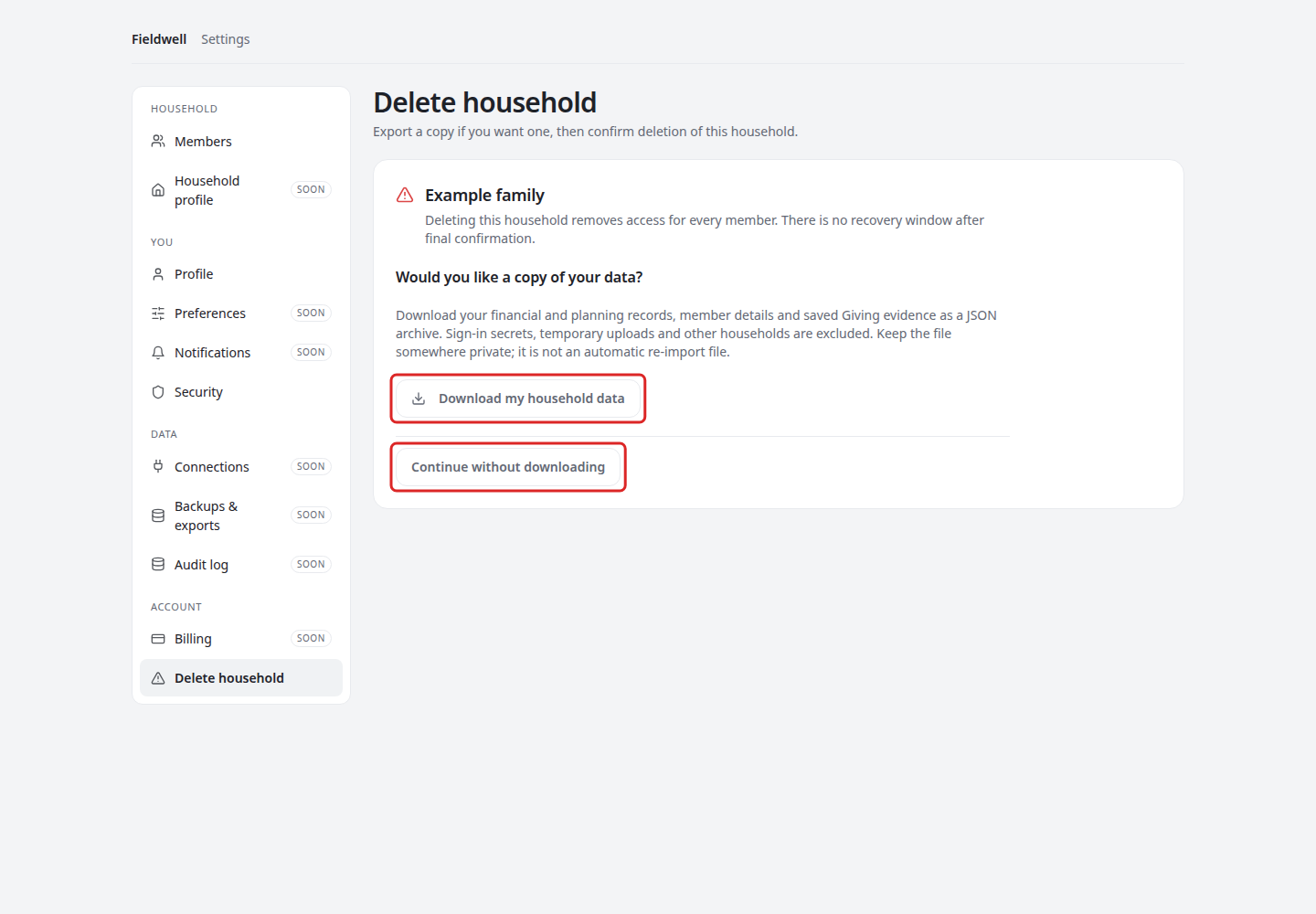
The highlighted choices let you download first or proceed without a copy. The fictional Example family shown here is not a customer's household.
Confirm deletion separately
- Read the warning that access will end for everyone in this household.
- Confirm that you were offered an export and are authorised to delete the household records, including any adult-managed child profiles.
- Type DELETE exactly.
- Choose Delete this household. Use Back to export instead if you are not ready.
Final confirmation closes household access and starts eligible-data deletion without a recovery window. If your security check is no longer recent enough, sign in again and return to the correct household. If you switch households while this screen is open, reopen deletion settings and check the name before retrying.
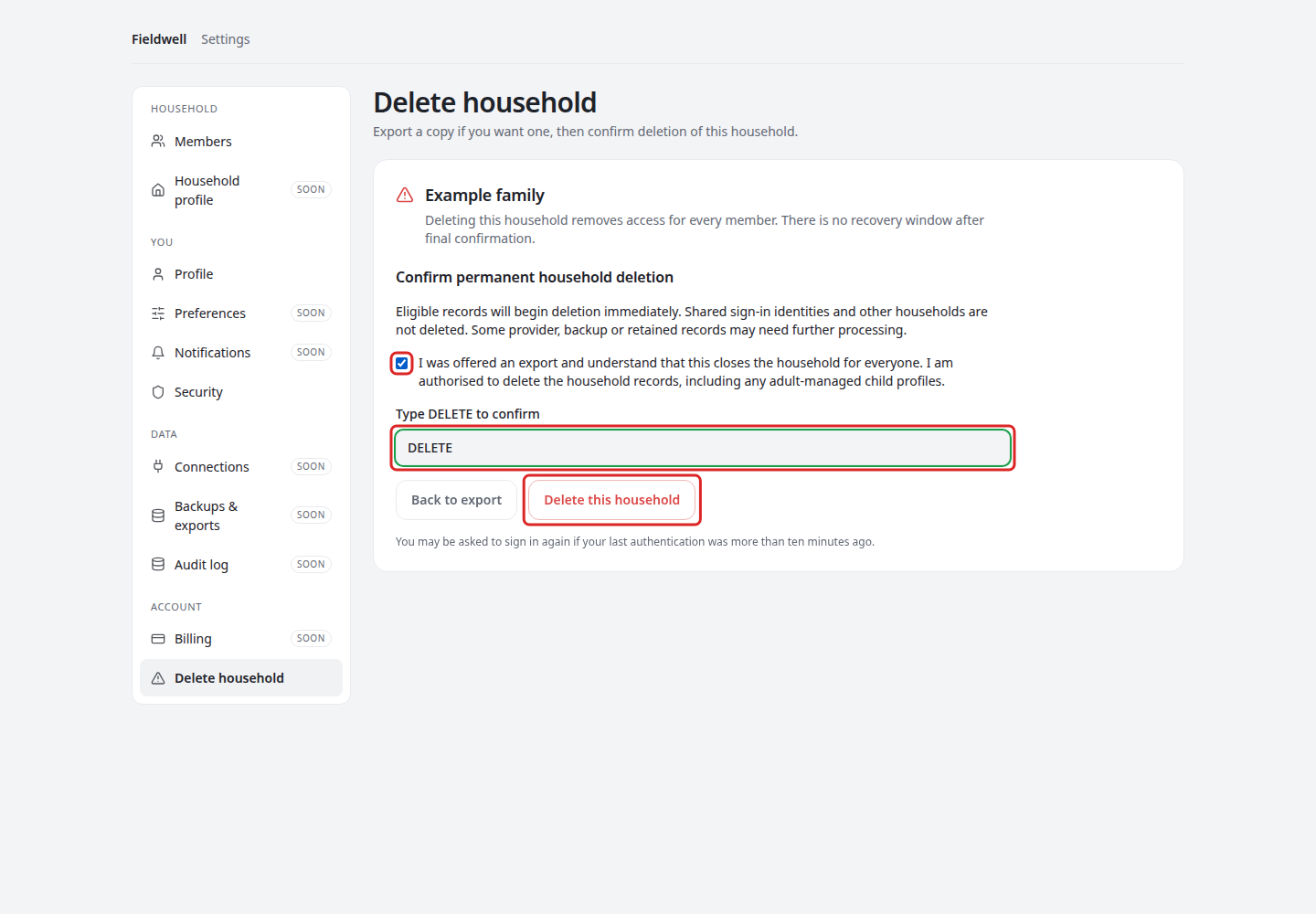
Both the acknowledgement and the exact confirmation text are required. Simply opening this page or downloading your data does not start deletion.
Understand the result
The status receipt confirms household access is closed. Refresh status checks progress; a completed eligible-financial-records message does not mean every external or retained copy has been erased.
Your registered sign-in identity and other households remain. Child or other unregistered profiles are scrubbed only when they are genuinely orphaned; profiles still used by another household are preserved.
Provider-held copies, protected backups and records requiring review may remain pending. A support hold or unresolved processing issue can stop deletion from completing, even after access has closed. Contact support with the request reference if you need help.
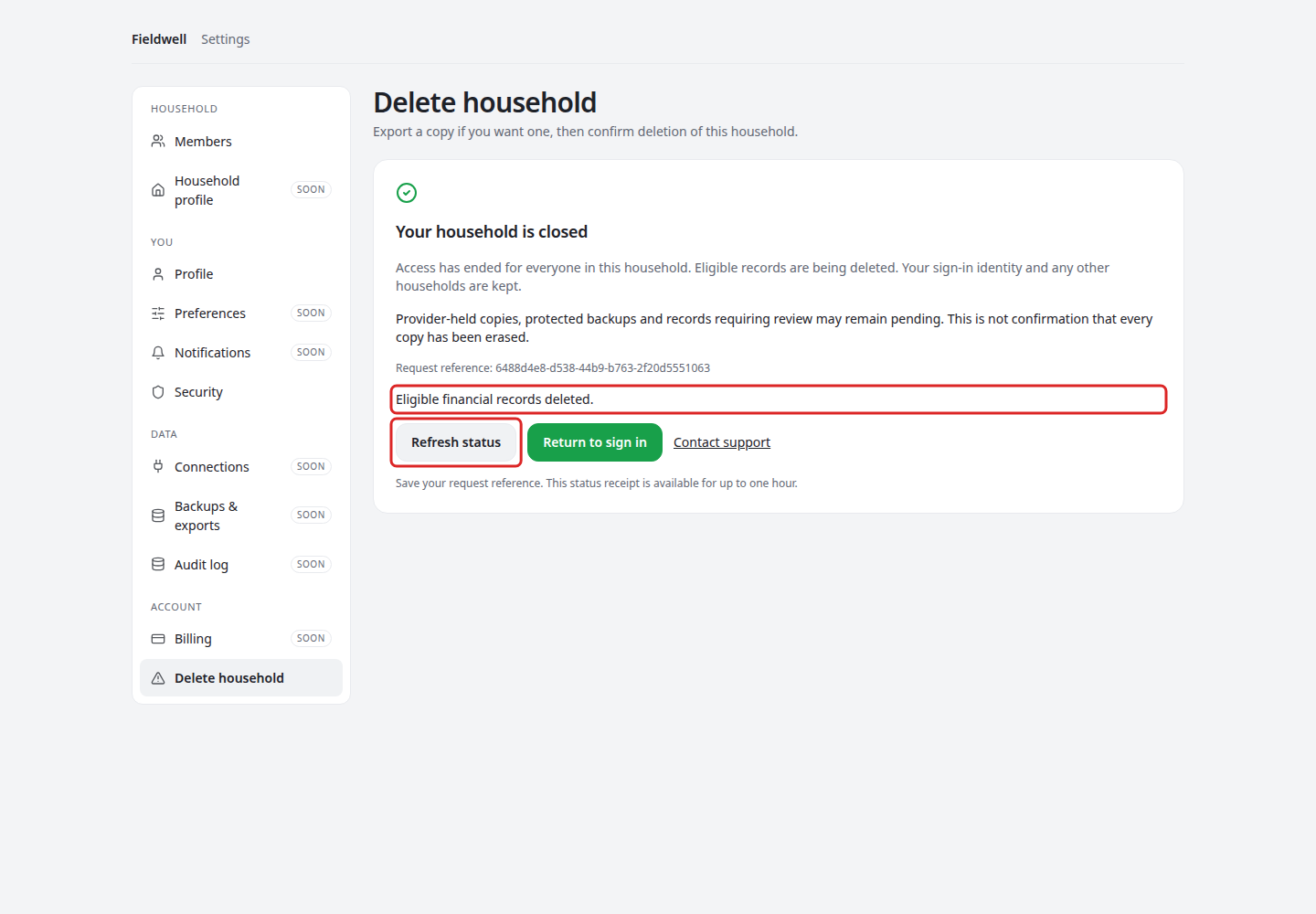
Save your request reference before leaving. The short-lived receipt is available for up to one hour, subject to the original session expiry; use Return to sign in to leave the closed household.