Open an asset's holdings, ISA manager or statement update
Use account-specific shortcuts from Assets without losing the selected portfolio or confusing daily value changes with investment returns.
Use the existing asset as your starting point. These actions do not create a second asset or move money.
Open the related manager
- In Assets, expand the intended row.
- For an investment portfolio, choose View holdings. Positions, cash, costs, gains and percentages are scoped to that account.
- For an ISA or JISA, choose ISA manager. Accounts & deals is filtered to that ISA; allowances still belong to the holder, not the account.
- Choose View all portfolios or View all ISA accounts to remove the filter.
The row's Actions menu also contains View portfolio and, where applicable, ISA manager. An unavailable account shows an explanation rather than silently substituting the combined view.
Review a statement update
For supported manual cash accounts and investment portfolios, choose Actions → Upload statement. The existing reviewed document flow is locked to that asset. Check the document, date and proposed values before confirming. A document for a different kind of asset cannot silently update another account. Cancel to leave the asset unchanged.
Linked bank feeds and unsupported asset types do not offer the upload shortcut. The detailed portfolio review retains holdings absent from the statement; do not interpret omission as a sale.
Inspect recorded value changes
Value, income & costs remains available in the expanded asset. Its daily history is the same account-specific history used in the selected portfolio view. Deposits and withdrawals also change the value, so this is not an investment-return chart. Missing earlier snapshots are not invented. Household-wide performance remains in the combined Holdings view.
Edit the asset
The row's Actions → Edit is the single editing entry, without a duplicate footer menu. For houses, optional Purchased date and Purchased price are near the top. They do not replace the current valuation. Institution is omitted for houses and cars; optional missing details say Not recorded.
Connect a bank feed
Manual cash accounts offer Connect a bank feed. After you authorise your bank, pick the matching bank account; the same record then updates from the feed and keeps its earlier balances as history, with no second asset. Existing TrueLayer accounts offer Manage bank connection, leading to Settings → Connections, and Disconnect feed in Edit. See Connect, renew or disconnect a bank feed.
Example shortcuts
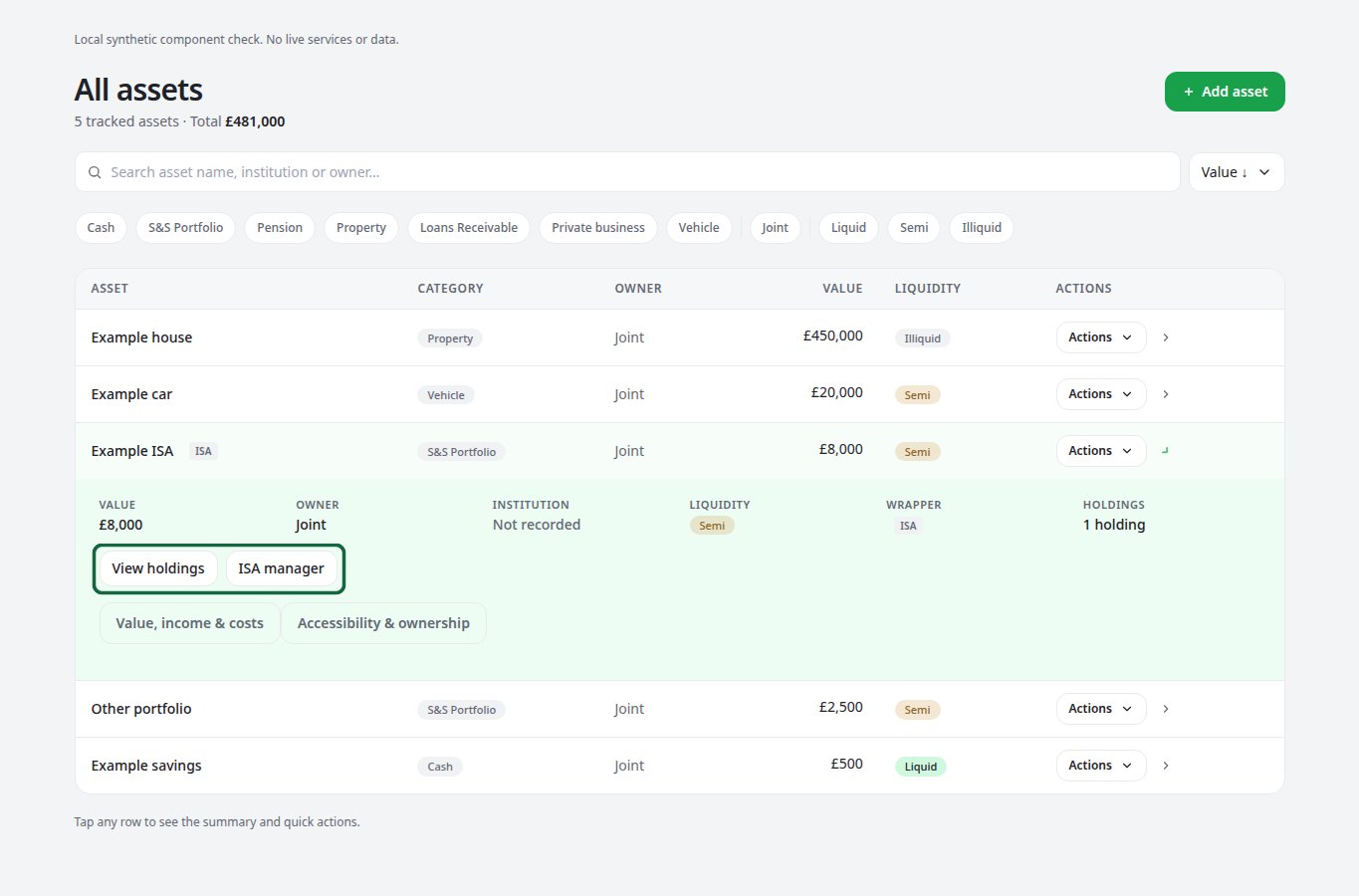
The highlighted shortcuts preserve the selected account. This synthetic illustration is not evidence of a live bank connection, extraction or saved customer change.